
Troubleshooting IGS102-2 Network Switch Issues: A Practical Guide for South African Labs
Diagnose IGS102-2 switch problems: power checks, cable tests, speed/duplex, and escalation notes for South African makers, students and technicians.
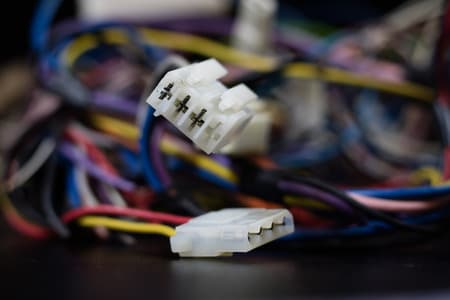
Start with Power & LEDs
Check the adapter voltage and port LED behaviour before deeper diagnostics.
Test Cables & Ports
Use a cable tester and swap cables/ports to isolate physical faults.
Document & Escalate
Log readings, LED patterns and topology to speed repairs or replacements.
Overview: common IGS102-2 problems
The IGS102-2 is a compact unmanaged/managed Ethernet switch found in small office, lab and education environments. When faults appear they usually fall into a few repeatable categories: power issues, link/port failures, mismatched speed/duplex, cabling faults, or configuration and firmware glitches (for managed variants). This guide helps South African makers, students, technicians and procurement teams identify root causes and resolve them with minimal downtime.
Required tools and preparation
- A multimeter (for supply and continuity checks) and a basic network cable tester.
- Spare Cat5e/Cat6 patch cables, known-good devices (laptop or AP), and a powered USB-to-Ethernet adapter if needed.
- Access to the switch datasheet or console (if a managed model) and the environment's network map.
Initial quick checks (5-minute triage)
Start with a quick triage to isolate the problem to power, cabling, or the device itself.
- Power LED: confirm the switch has mains power and the power LED is on. If the switch uses an external adapter, check the adapter label against the switch input rating.
- Link LEDs: note which port LEDs light when devices are connected - this identifies whether the switch sees a physical link.
- Swap cable and port: replace the patch cable with a known-good cable and move the device to another port to rule out a single-port fault.
South Africa note: If parts or replacement cables are needed, Communica branches in Samrand (Centurion), Pretoria CBD and Cape Town carry patch cables, testers and adapters for immediate collection. Check stock and lead times before scheduling repairs.
Power checks and multimeter tests
Verify the external power supply (if fitted) and internal supply rails where accessible.
- Measure the adapter output voltage with the multimeter set to DC volts. Expect the label value within ~5% tolerance. If the adapter is rated 9V DC, readings significantly outside that range indicate a failed adapter.
- Check continuity of the power jack and any internal fuses (if user-accessible). A blown fuse or open connection will prevent the switch from powering on.
Cabling and physical layer diagnostics
Most switch problems are physical-layer related. Use a cable tester and follow these steps:
- Test each patch cable end-to-end for continuity, pair split and wiremap errors (e.g., swapped pairs). A simple 4/6/8 LED tester is sufficient for Cat5e/Cat6 links.
- Check patch panel and wall outlets - a broken RJ45 jack or poor termination can cause intermittent link lights.
- For PoE models: verify powered devices draw correct power class and that the switch supports the required PoE budget.
ASCII wiring diagram: basic link test
Use a laptop and one patch cable to confirm basic connectivity. Diagram below shows a direct test connection to a single port:
[Laptop NIC] --- Cat5e Patch --- [IGS102-2 Port 1]
If the laptop link LED is on and IP configuration is correct, you have basic layer 1 connectivity. If not, move to cable and adapter checks as above.
Documenting observations
Record LED patterns, measured voltages, cable test results and which ports are affected. This helps when escalating to vendor support or replacing hardware and speeds up procurement for replacements (show suppliers the observed fault behavior).
Related Connectors, Wire & Cable Products
Discover quality connectors, wire & cable products related to Troubleshooting IGS102-2 Network Switch Issues: A Practical Guide for South African Labs

Mecer Snmp-v Snmp Network Card
Mecer Snmp-v Snmp Network Card

Linqnet 24 Port Shielded Patch Panel Cat6a
Linqnet 24 Port Shielded Patch Panel Cat6a

Planet Gs-4210-48p4s Network Switches Racks & Accessories
Planet Gs-4210-48p4s Network Switches Racks & Accessories

Tp-link Sg1218mpe 18 Port Gigabit Easy Smart Switch With 16 Port Poe+ 10/100/1000mbps, 2×combo Gigabit Sfp Ports, Poe Power Budget:250w, 36gbps 8k, 10
Tp-link Sg1218mpe 18 Port Gigabit Easy Smart Switch With 16 Port Poe+ 10/100/1000mbps, 2×combo Gigabit Sfp Ports, Poe Power Budget:250w, 36gbps 8k, 10

Brush Panel 1u 19" No Base/rings
Brush Panel 1u 19" No Base/rings

Cattex 24 Port Cat5e Utp Rackmount Patch Panel – Networking
Cattex 24 Port Cat5e Utp Rackmount Patch Panel – Networking

Dahua Pfs3008-8gt-60: 8 Port Desktop Switch With 4 Port Poe (v2.0)
Dahua Pfs3008-8gt-60: 8 Port Desktop Switch With 4 Port Poe (v2.0)

Hikvision Ds-3e1318p-ei Managed Cctv Switch With 16 Poe Rj45 Ports And Gigabit Combos
Hikvision Ds-3e1318p-ei Managed Cctv Switch With 16 Poe Rj45 Ports And Gigabit Combos

Tp-link Sf1008p 8-port 10/100mbps Desktop Switch With 4-port Poe
Tp-link Sf1008p 8-port 10/100mbps Desktop Switch With 4-port Poe

Tp-link Sf1024d 24-port Desktop Network Switch
Tp-link Sf1024d 24-port Desktop Network Switch

Planet Gsw-2824p - 24 Port 10/100/1000t 802.3at Poe + 2-port 10/100/1000t + 2-port Gigabit Tp/sfp Combo Ethernet Switch Unmanaged
Planet Gsw-2824p - 24 Port 10/100/1000t 802.3at Poe + 2-port 10/100/1000t + 2-port Gigabit Tp/sfp Combo Ethernet Switch Unmanaged

Planet Gs-4210-24t4s 24-port 10/100/1000t + 4-port 100/1000x Sfp Managed Gigabit Switch24
Planet Gs-4210-24t4s 24-port 10/100/1000t + 4-port 100/1000x Sfp Managed Gigabit Switch24
Layer 2 and configuration checks
Once physical connectivity is confirmed, examine Layer 2 behaviour. For managed variants of the IGS102-2, check VLANs, port speed/duplex settings and spanning tree behaviour. For unmanaged variants, focus on autonegotiation and connected device settings.
Speed & duplex mismatches
Mismatches often cause slow or intermittent connections. On managed switches or on connected endpoints, verify both sides are using autonegotiation or set matching fixed speeds. Typical steps:
- Check the link speed reported on the switch console or the endpoint NIC. If one side is fixed at 1000Mbps and the other is forced to 100Mbps, reset to autonegotiation or match the settings.
- Example command/check: view port status on managed switches or use ethtool on Linux to see negotiated speed/duplex.
Frame loss and broadcast storms
Symptoms like full-link LEDs but packet loss indicate higher-layer issues. Look for loops (missing STP on networks with redundant links), misconfigured VLANs, or a faulty NIC flooding traffic. Use a packet capture on a connected PC or a managed port mirror to inspect traffic.
Example table: quick fault checklist
| Symptom | Likely cause | Action |
|---|---|---|
| No power LED | Faulty adapter / fuse | Measure adapter output; replace adapter; check internal fuse |
| Link LED off but device online elsewhere | Broken cable / RJ45 pinout | Test and replace cable; reterminate jack |
| Slow transfers, high latency | Duplex mismatch / congestion / faulty NIC | Verify speed/duplex; test with another NIC; check traffic flows |
When to replace vs repair
If a single port is dead but the rest of the switch functions, consider using spare ports or an external unmanaged mini-switch as a short-term workaround. If the power stage or multiple ports fail, replacement may be the most cost-effective option. For budgeting in South Africa, factor in a spare switch cost plus cables and labour: typical small switch replacements can range from several hundred to a few thousand ZAR depending on brand and features (estimate range only).
Preventative and lab best practices
- Label ports and patch cables, keep a small stock of Cat6 patch leads and replacement adapters in your bench kit.
- Keep firmware backups (for managed switches) and document VLAN configurations before making changes.
- Use surge protection where appropriate-the cost of a small surge protector is low compared with replacing multiple network devices.
Escalation: what to provide when requesting service or replacement
When contacting a supplier or service technician, include: switch model and serial (if available), observed LED patterns, multimeter readings of the PSU, cable tester reports, and a short network diagram showing affected devices. This speeds diagnosis and helps procurement teams request correct replacements and VAT invoices for institutional purchases.
Sources
- Cisco - Ethernet switching basics and troubleshooting
- IETF RFCs and Ethernet standards reference materials
- Communica - Cabling, patch leads and testers
- Communica - Branches & Trading Hours
- Microsoft - Network troubleshooting and link diagnostics
Note: voltage and cost figures in this guide are illustrative. For replacements or spare parts, check live stock and prices in ZAR on supplier pages and request a VAT invoice when purchasing for education or institutional use.
Communica supplies semiconductors and electronic components to industries such as automotive, electrical, automation, mining, and education.
Disclaimer: This content is for educational purposes only. Product availability, pricing, and specifications are subject to change. Always verify current details on the retailer's website before making a purchase. We may earn affiliate commissions from qualifying purchases.


Frequently Asked Questions
Get answers to common questions about Connectors Wire And Cable
Why Choose Communica?
*Free Shipping
Free shipping for orders over ZAR 1,000.00.
7-Day Returns
Get a full refund if you had the product for less than 7 days.
Quick Delivery
Nationwide delivery within 2 - 4 working days.
